Layer Identification
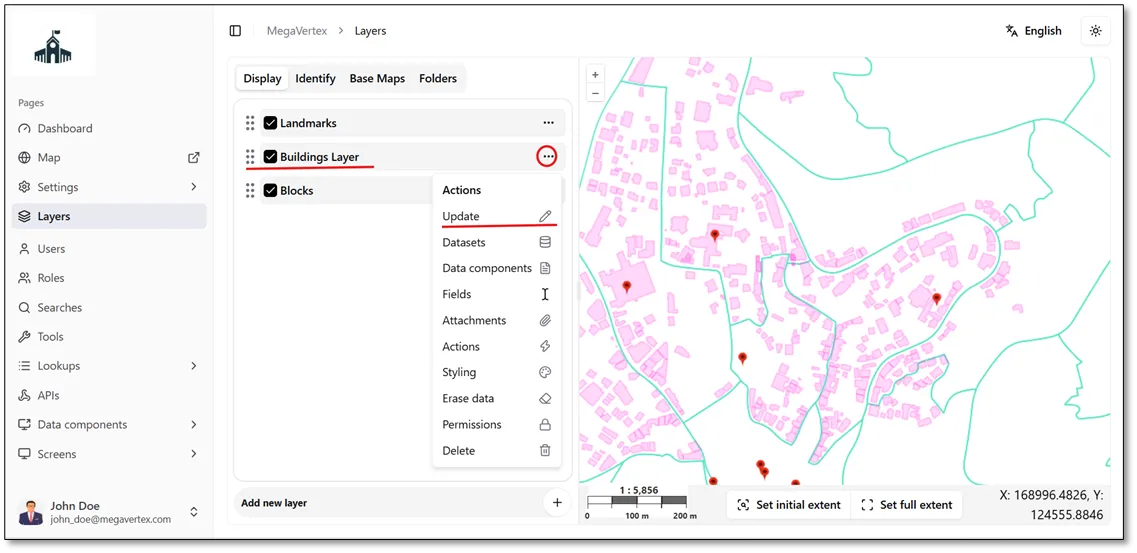
To enable feature identification for a layer, navigate to the Layers page and click the Actions button  next to the target layer. Then, select Update
 and enable the Identify option, as shown in the figure below.
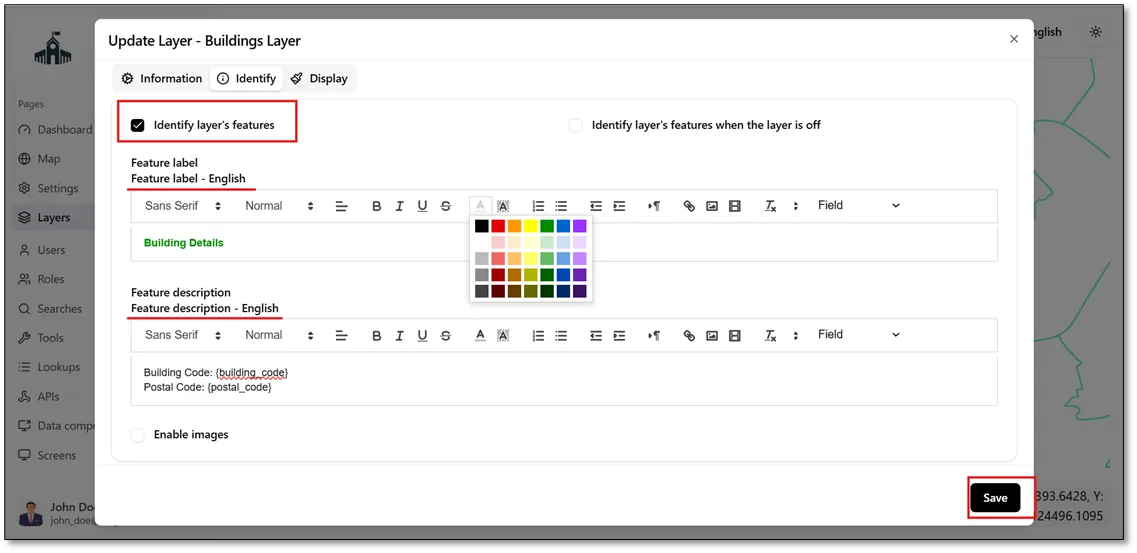
Click on the Identify tab and check the Identify Layers Feature checkbox to enable feature identification. Then, enter a Feature Label and a Feature Description using the text editor. You can also customize the text's appearance using the available editing tools, as shown in the figure below.
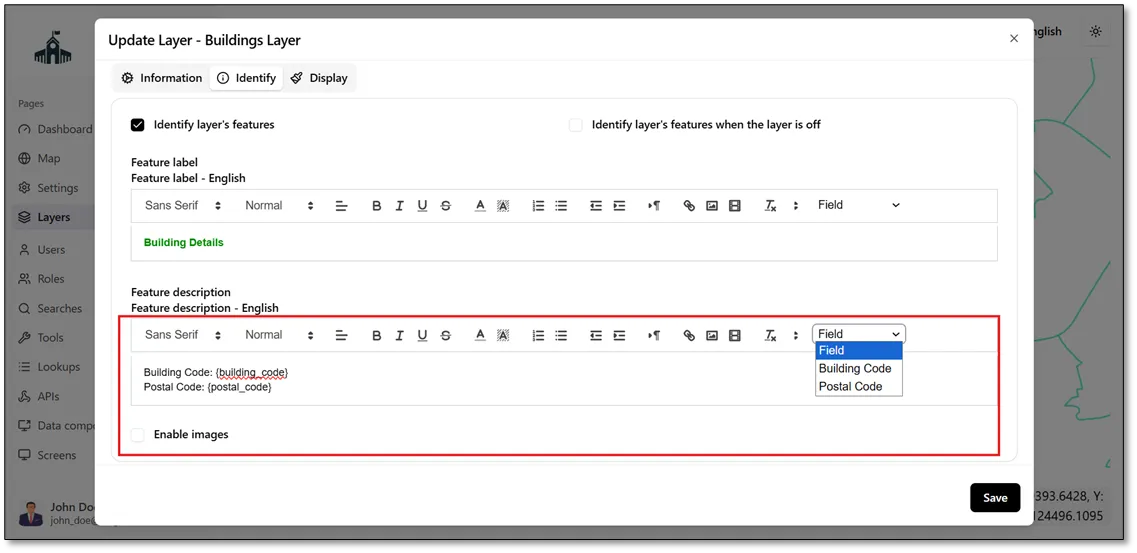
Inserting Fields into the Feature Description
Note that the Field List displays only fields that are marked as visible. To insert fields into the feature description, ensure that the required fields are visible in the layer settings. For instructions on managing field visibility, refer to the Layer Field Visibility sectionLayer Field Visibility section.
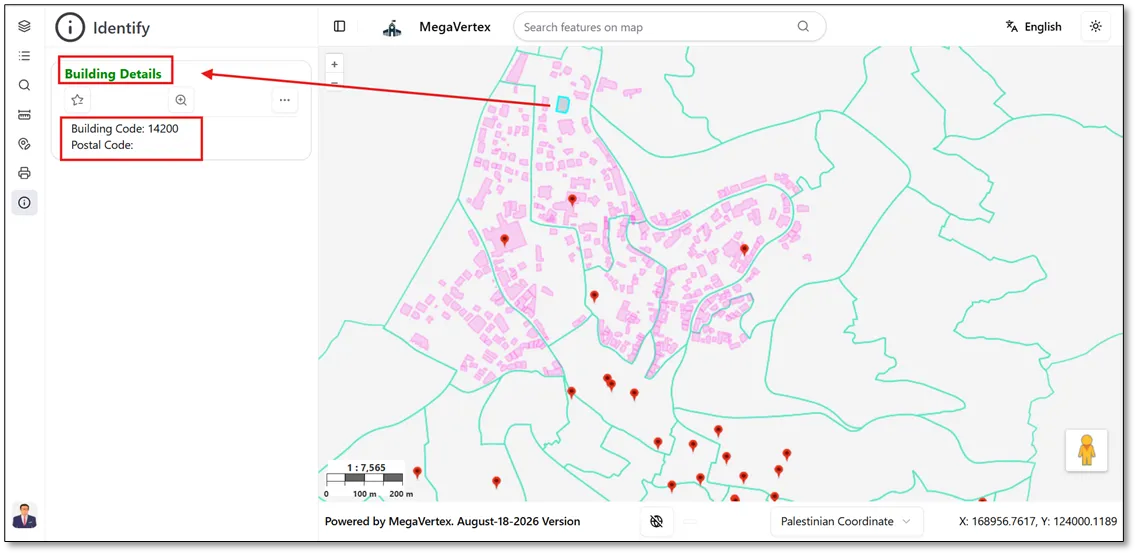
When you select a building feature on the map, the Identify panel opens  and displays the corresponding feature information, as shown in the figure below.