Welcome Message
1 min
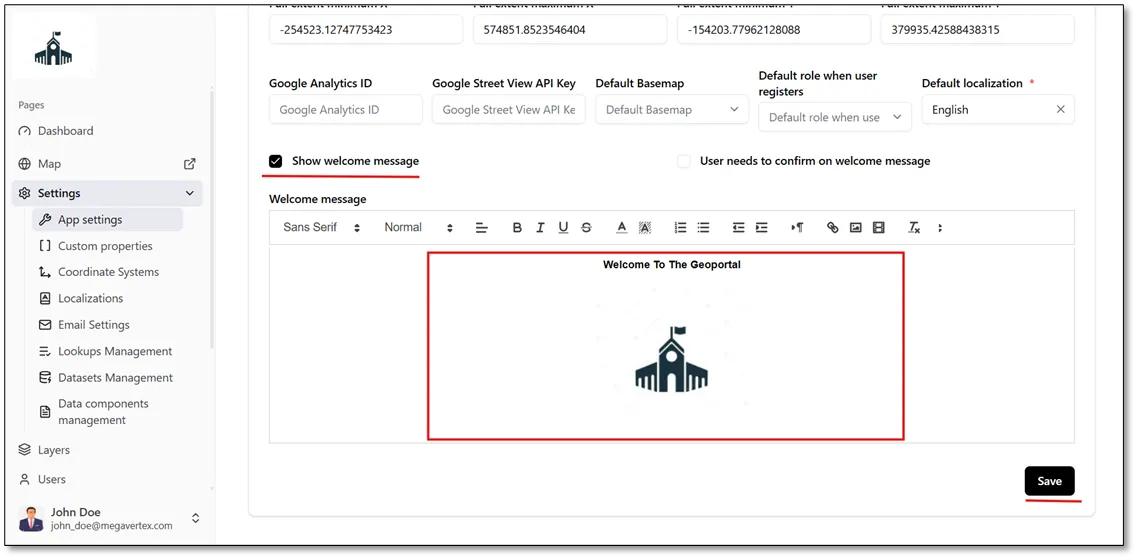
You can create a welcome message for users and visitors by entering the desired text in the Welcome Message text area, as shown in the figure below.
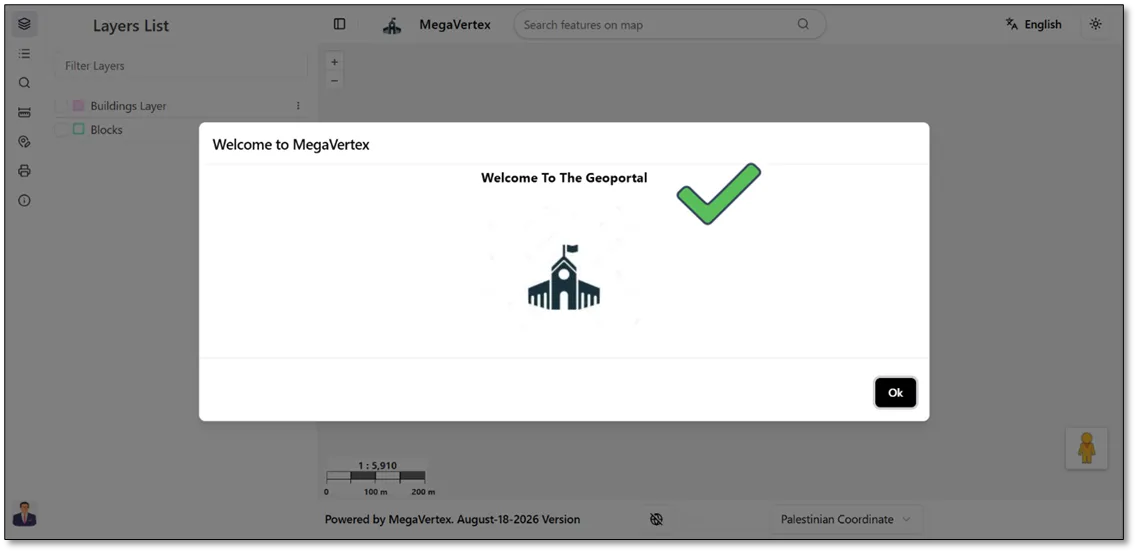
As shown in the figure below, the welcome message and application display name appear on the map when users open it.
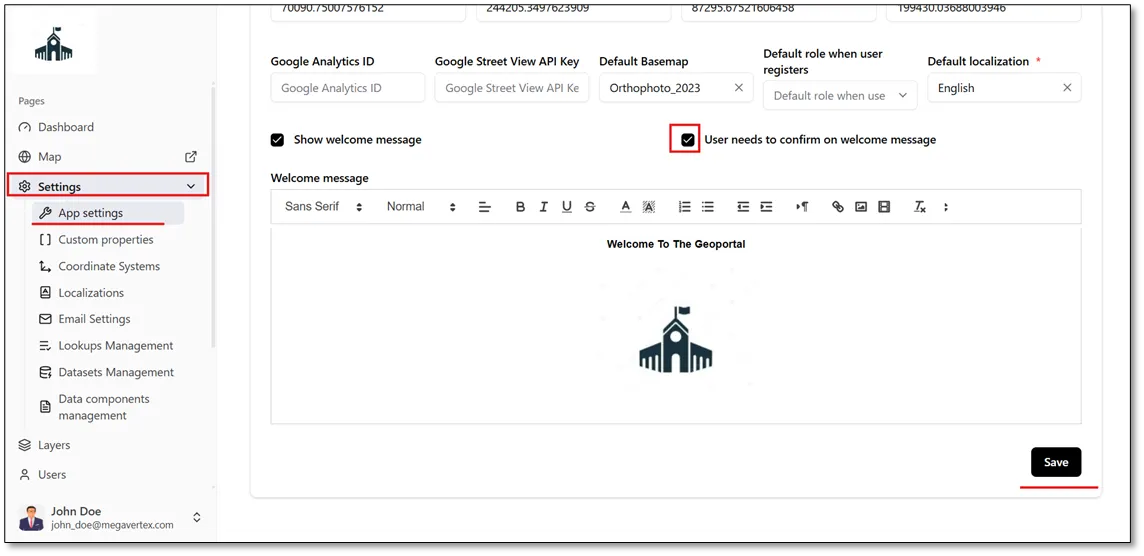
Users can be required to confirm the welcome message by activating the “Users need to confirm on welcome message” checkbox  in the application settings. Once this option is enabled, the welcome message confirmation will be displayed on the map, as shown in the figure below.
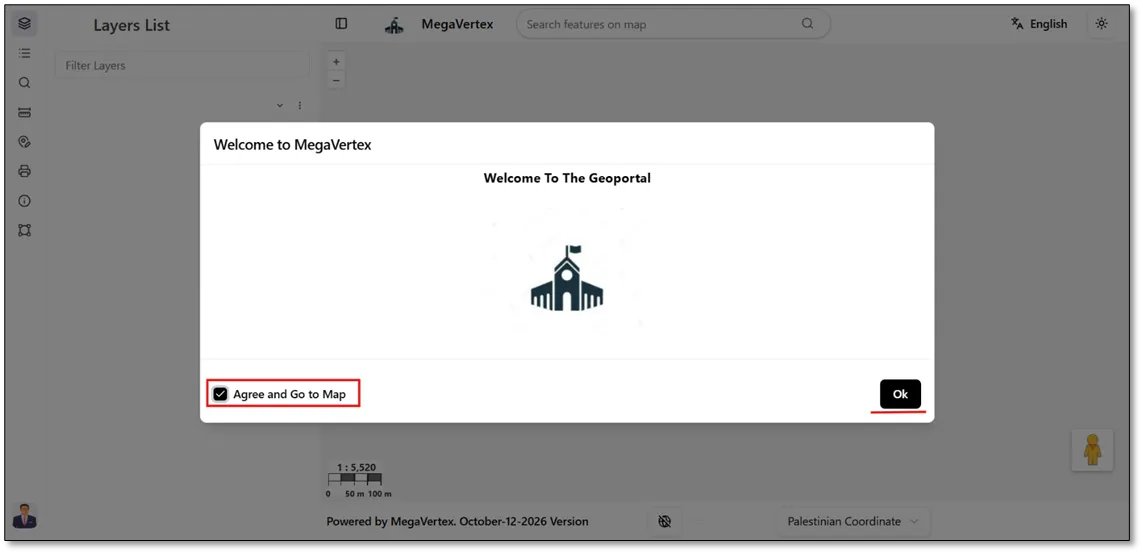
The map displays a welcome message before allowing users to access it. Users must click “Agree and Go to Map” to proceed to the map, then click “OK” to confirm and continue, as shown in the figure below.