Styling with image symbols
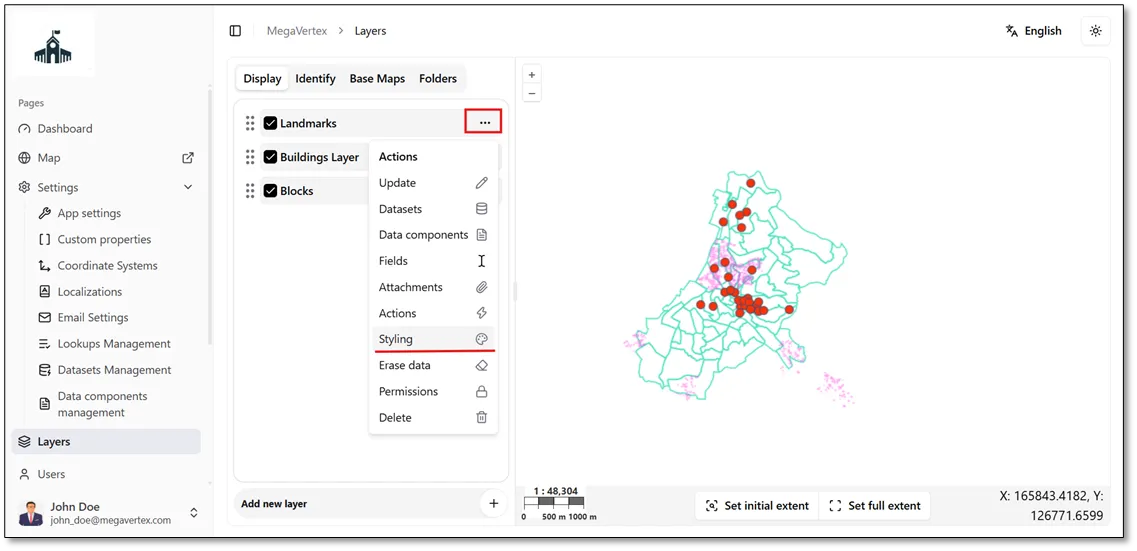
Users can customize the appearance of point features by using an image as a symbol. To do so, navigate to the Layers page, click the Actions button  next to the target layer, and select Styling
 . Then, follow the steps illustrated in the figure below to configure the point style using an image.
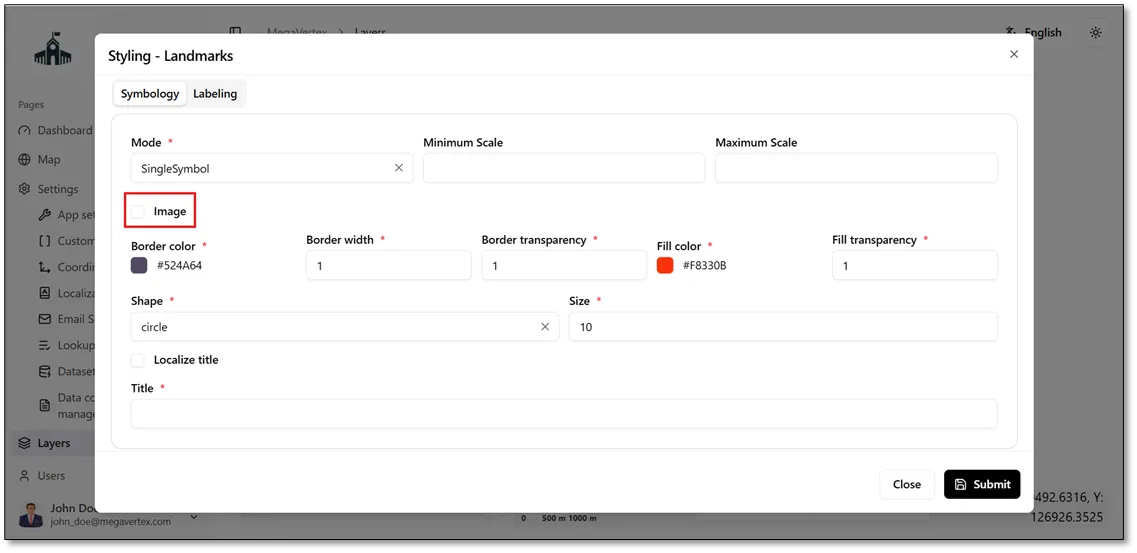
Select the Image checkbox  to enable image-based styling for the point layer, as shown in the figure below.
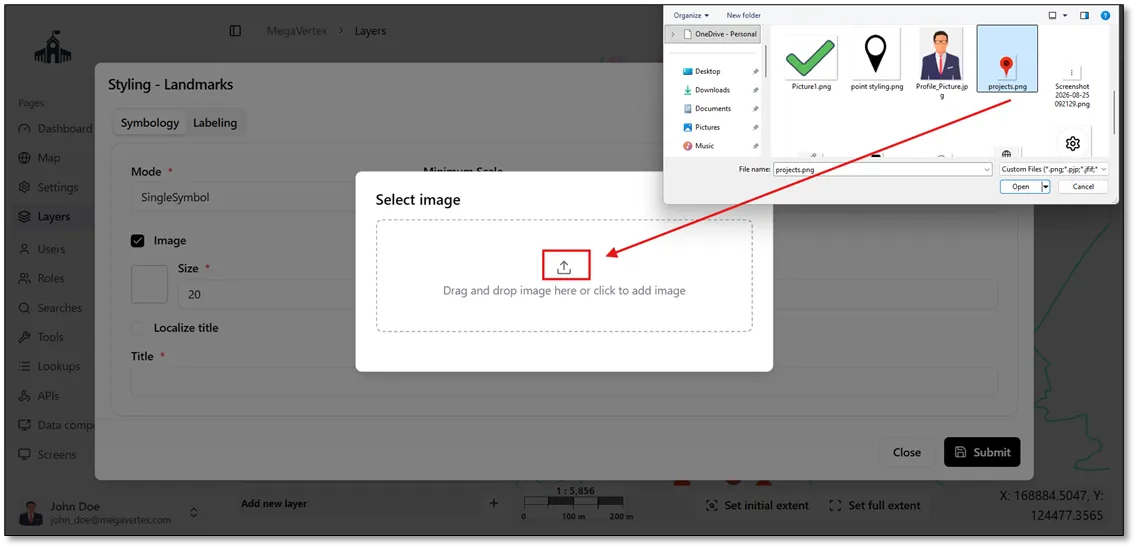
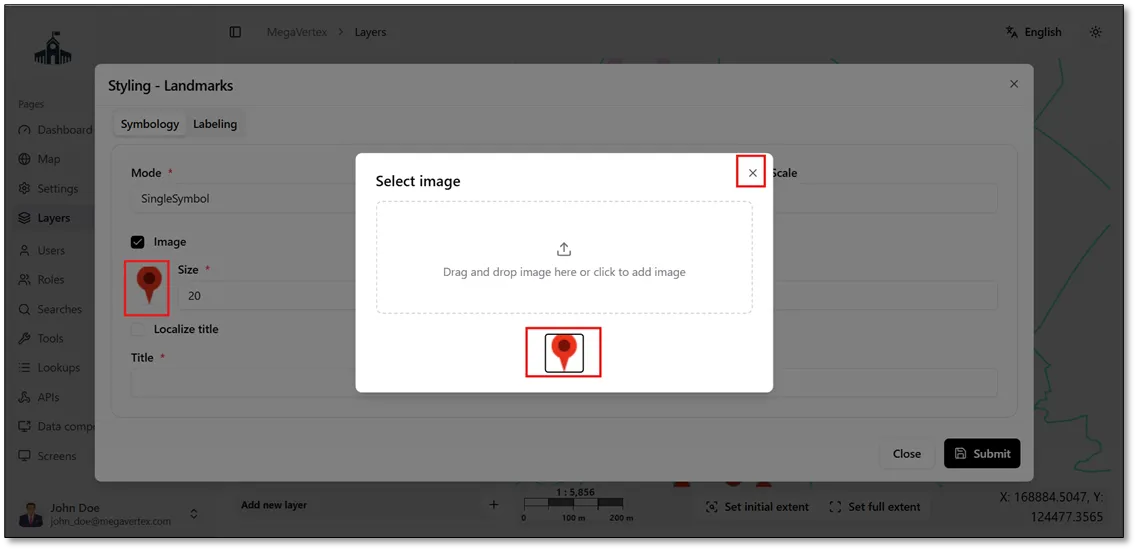
Click the image placeholder below the Image checkbox, then select and upload the desired image from your local device.
Click the X button to close the image selection window and return to the layer styling settings.
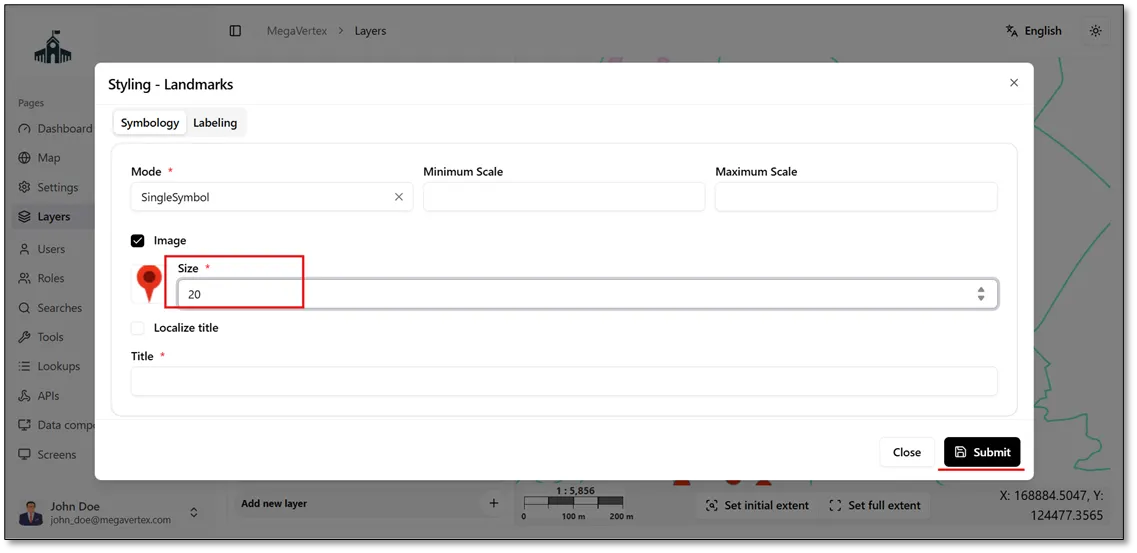
Specify the desired Image Size, then click the Submit button to apply the changes, as shown in the figure below.
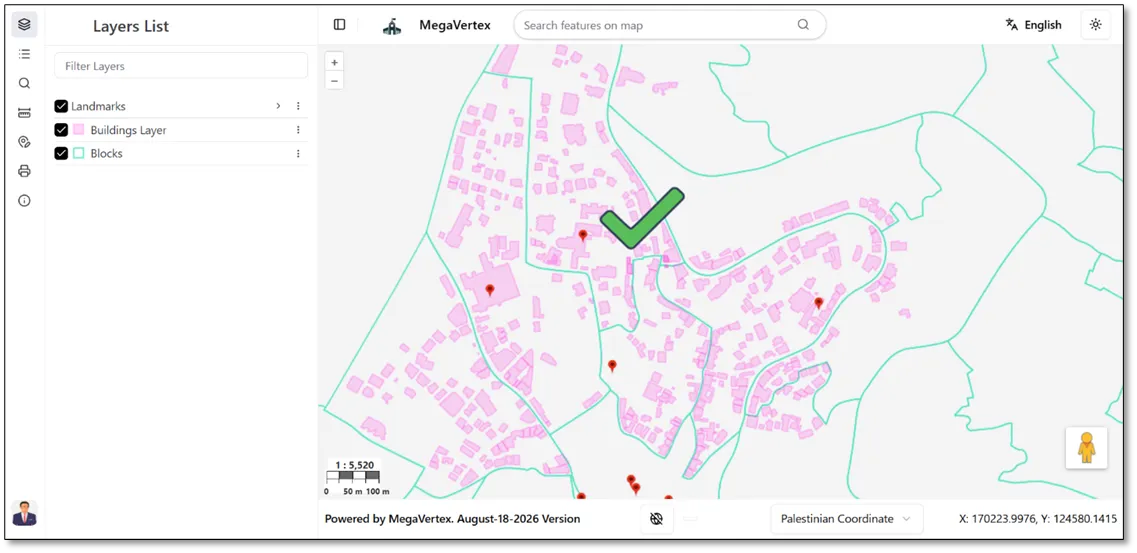
The figure below shows the result on the map after applying the new image symbol to the point layer.