Layer Fields
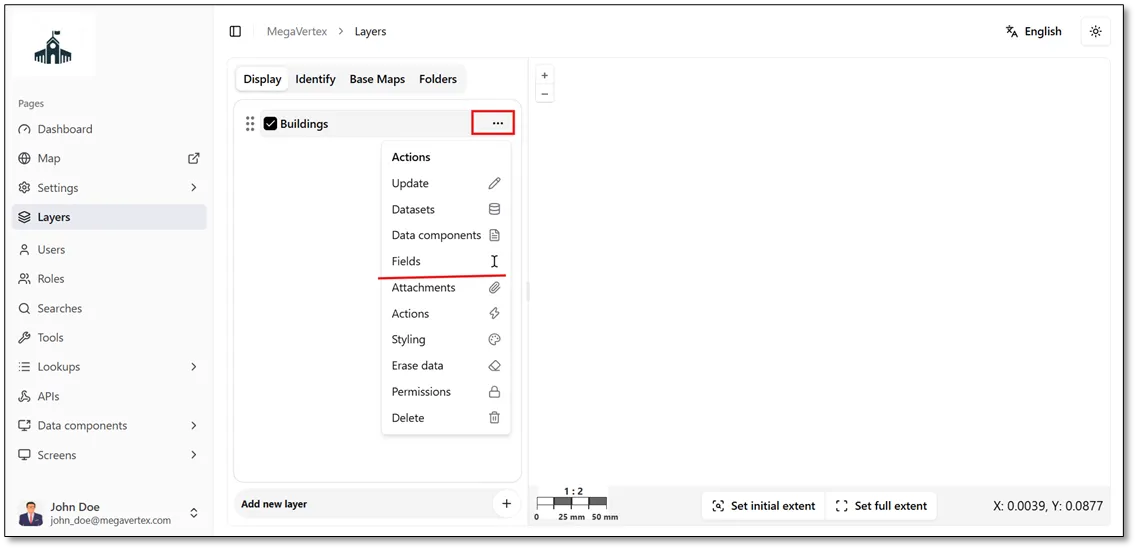
After adding a layer, you can configure its fields by clicking the Actions button  and then selecting Fields, as shown in the figure below.
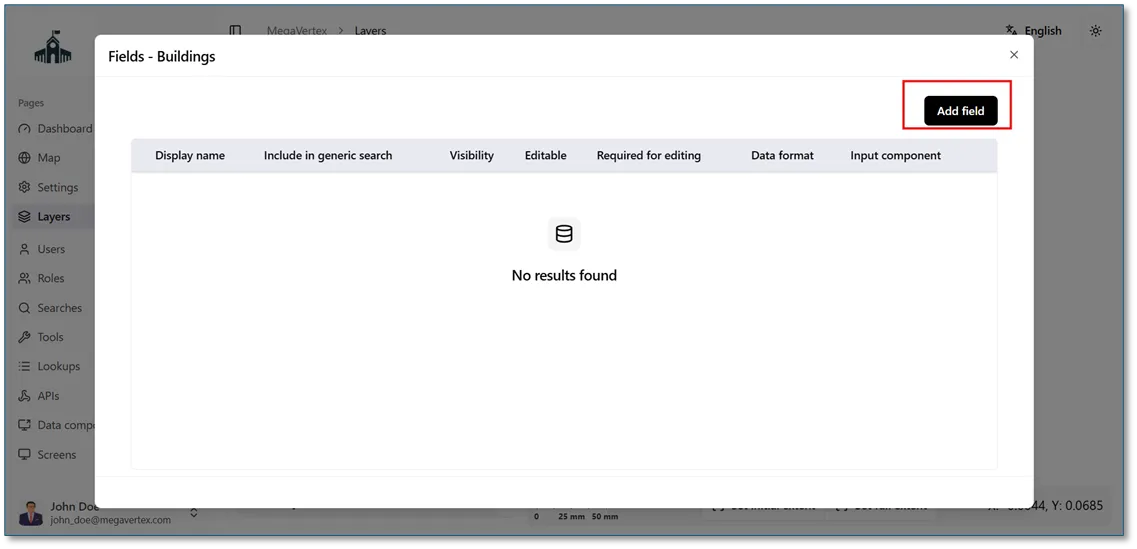
Click the Add Field button to add a new field to the layer, as shown in the figure below.
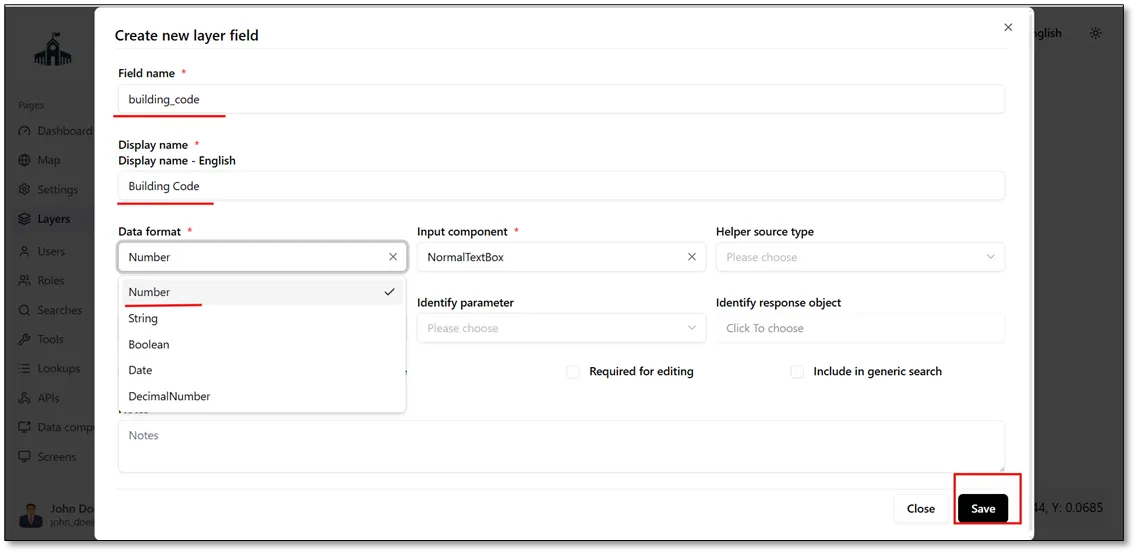
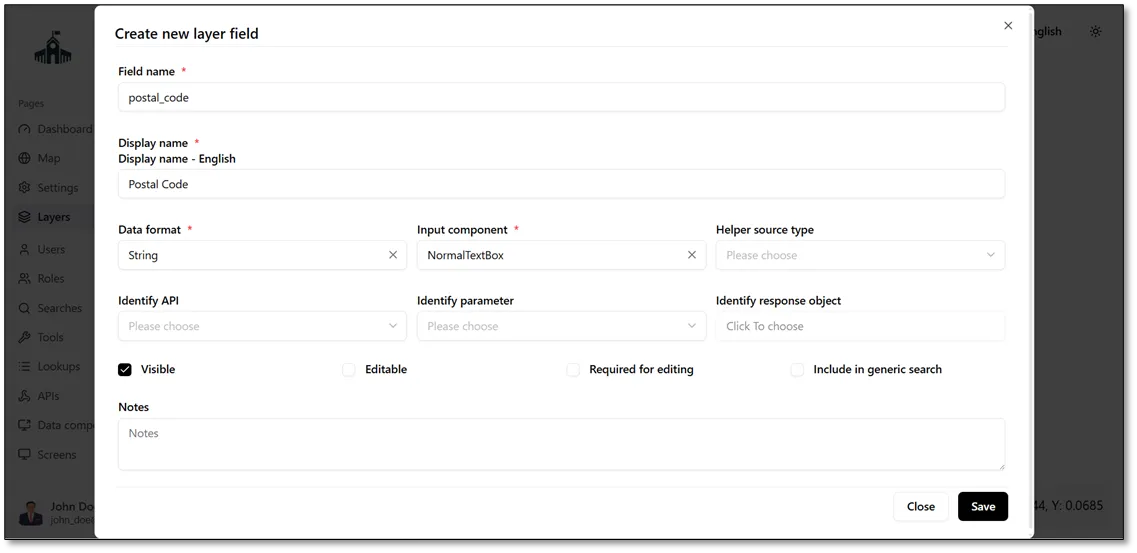
Enter the required field information, including the Field Name and Display Name in the available localized languages. Then, select the appropriate Data Type from the available options: Number, String, Boolean, Date, or Decimal Number. Once you have completed the required information, click the Save button to add the field.
To add another field, click the Add Field button and repeat the steps described above to enter the required information, select the appropriate data type, and click Save.
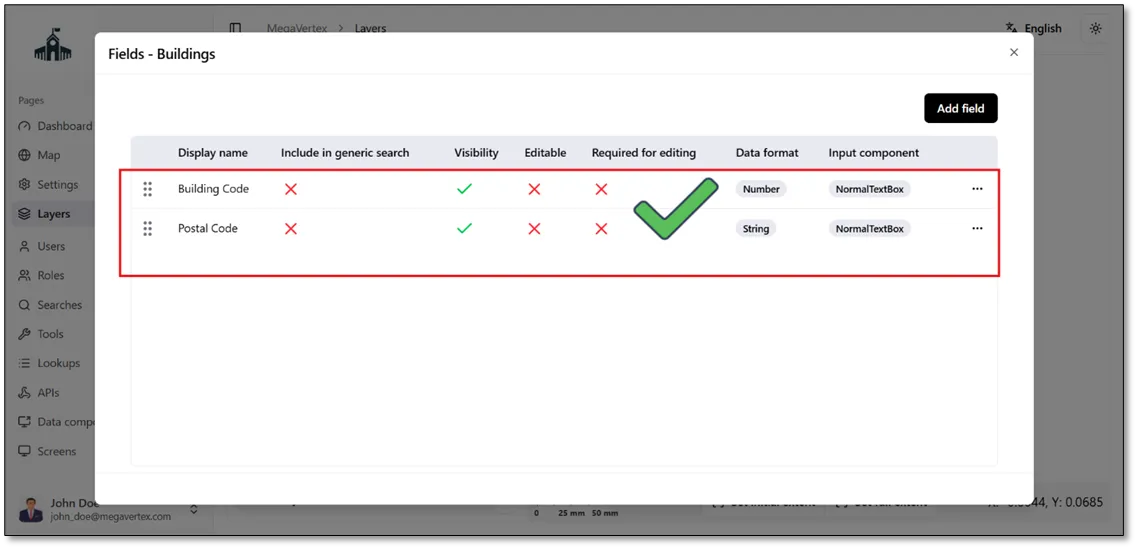
The result below shows the newly added fields in the layer's field list.