Add Layer
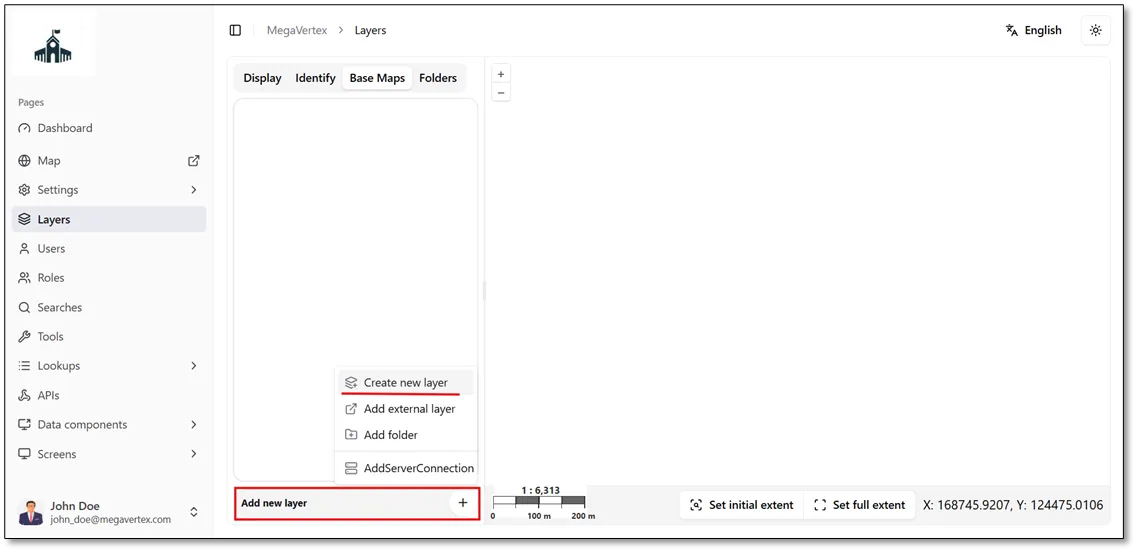
To add a new layer, navigate to the Layers page and click Add New Layer at the bottom of the page. Then, select Create New Layer, as shown in the figure below..
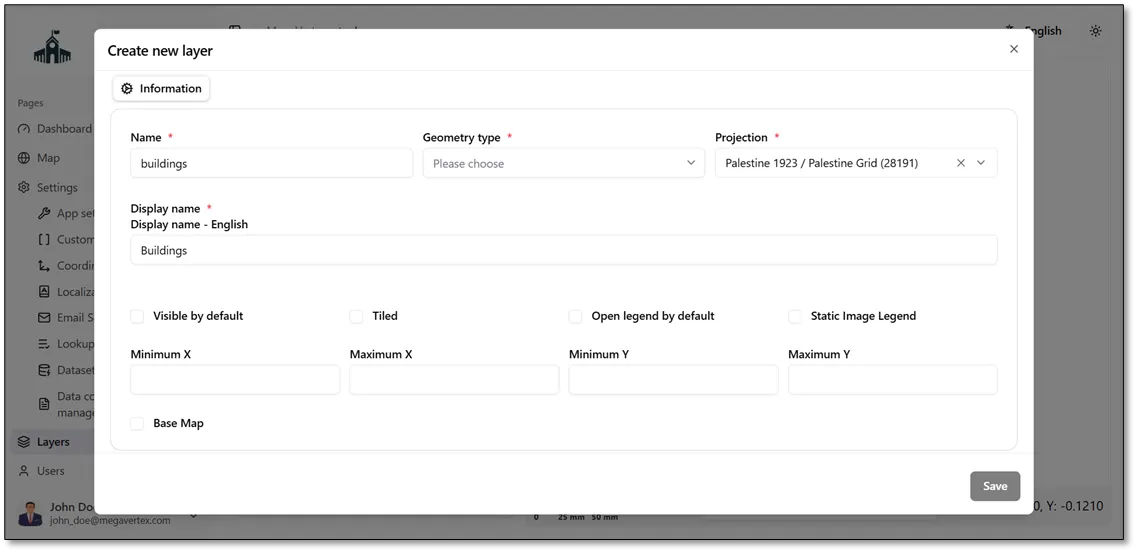
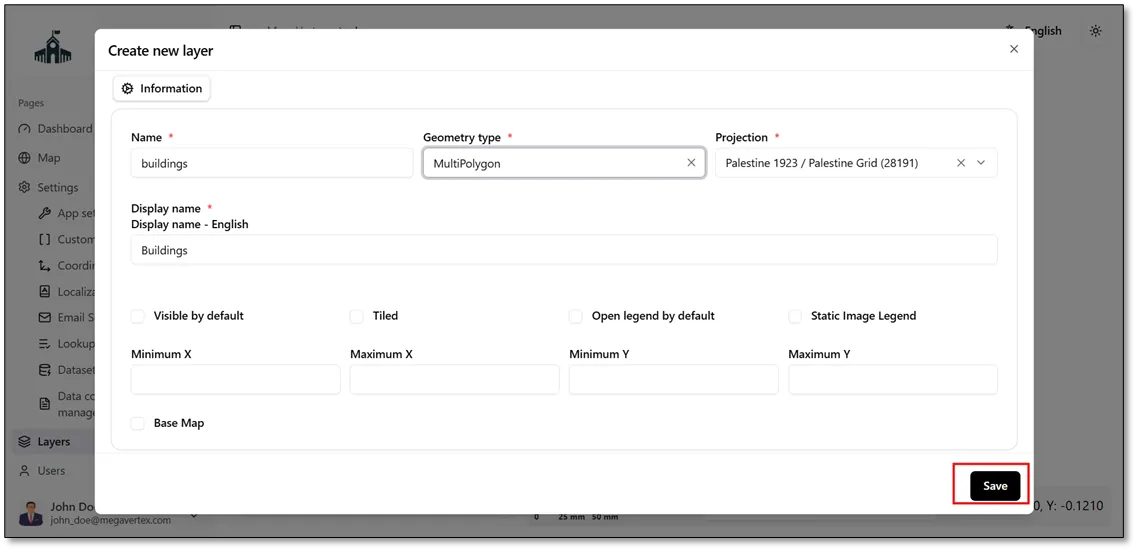
Enter the required layer information, including the Layer Name, Geometry Type, and Projection. Then, specify the Display Name in the available localized languages. Once all the required information has been provided, click the Save button, as shown in the figure below.
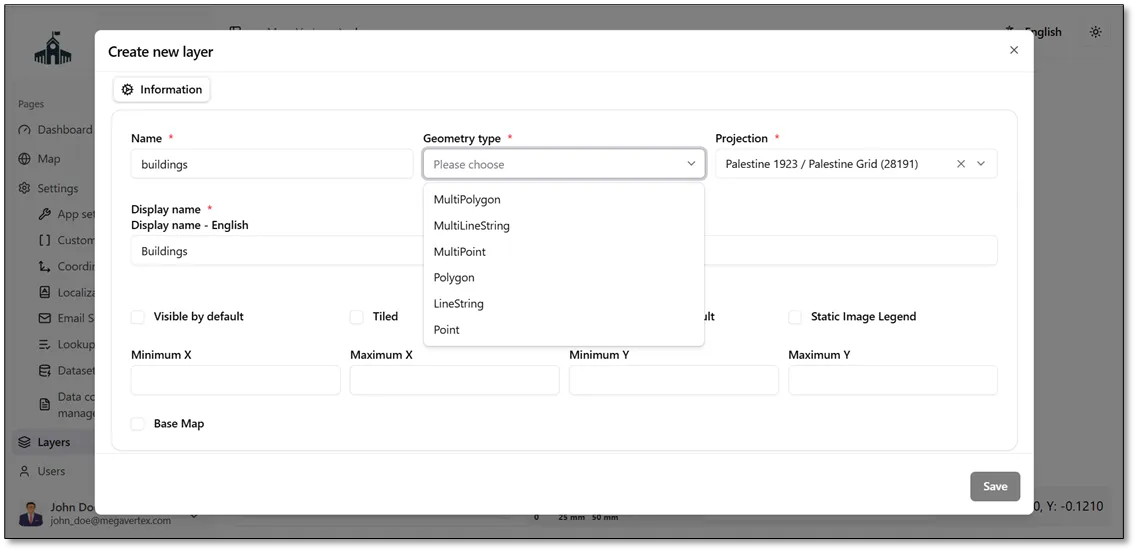
The Geometry Type field provides several options, such as MultiPolygon, MultiLineString, and Point. The appropriate geometry type depends on the type of spatial features represented by the layer.
In the example below, the Buildings layer uses the MultiPolygon geometry type.
Click the Save button to save the configuration and add the new layer to the application.
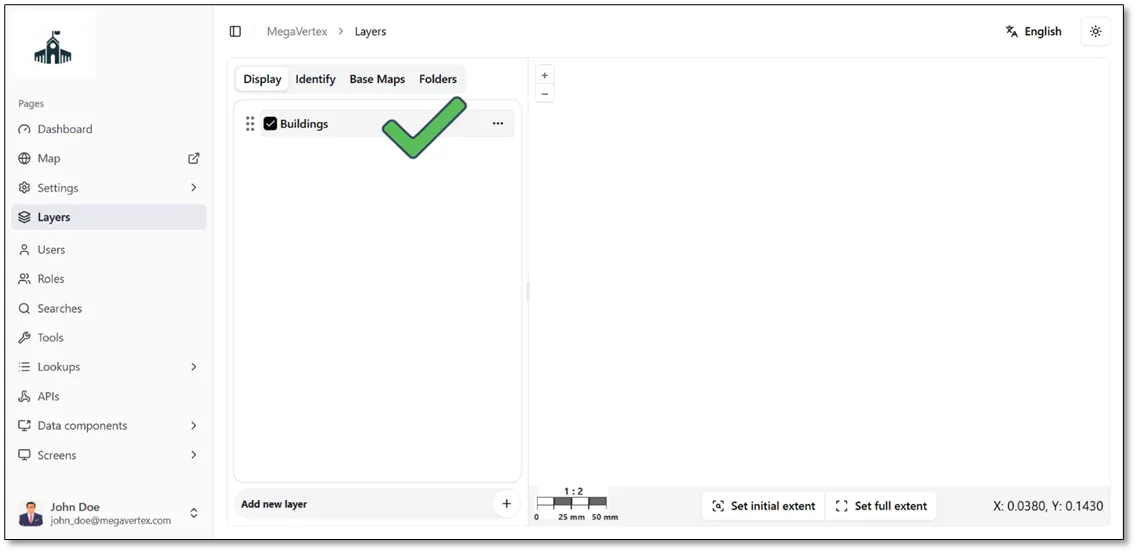
The result below shows that the new layer has been successfully added to the application.