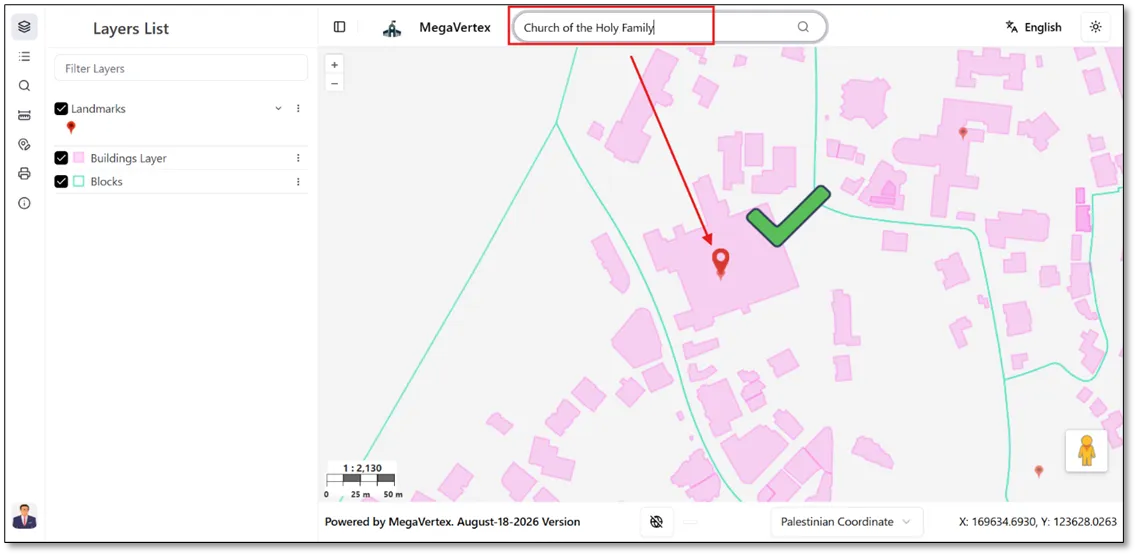
Generic Search
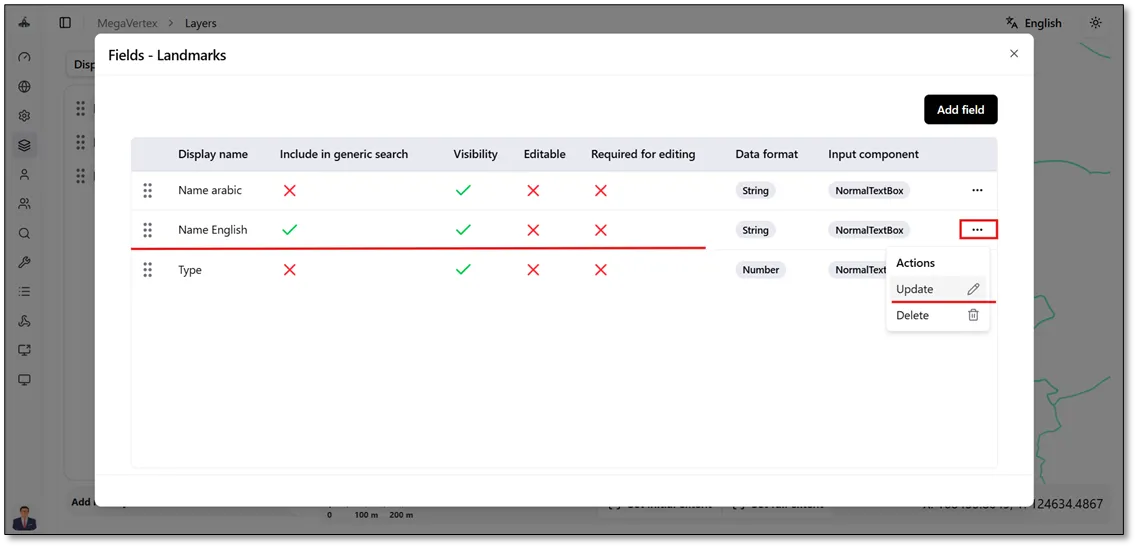
To enable searching for map features by a specific field in a layer using the Generic Search tool, click the Actions button  and navigate to the Fields tab. Select Update
 for the field you want to include in the generic search, then check the Include in Generic Search checkbox
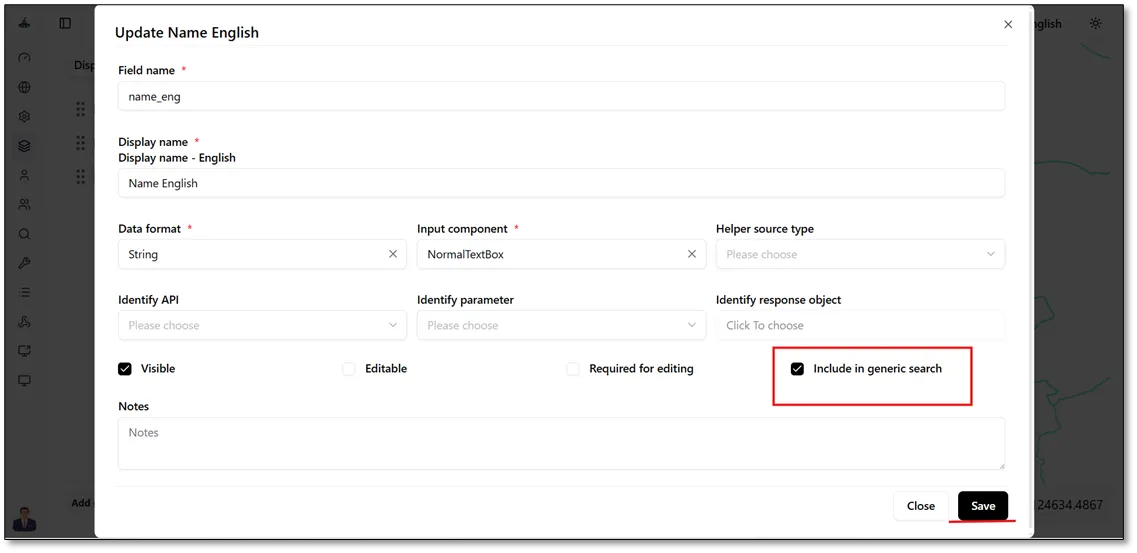
 and click Save. In the example below, the English Name field of the Landmarks layer is selected. Follow the steps illustrated in the figure below.
Check the Include in Generic Search checkbox  , then click Save to apply the changes.
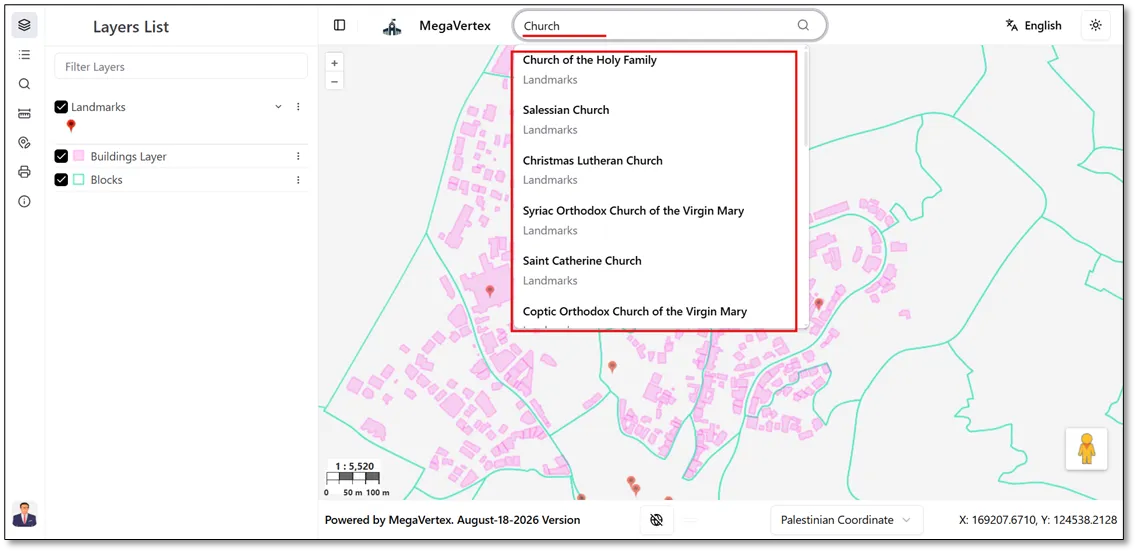
In the Generic Search field, enter at least three characters to trigger the autocomplete feature. A list of matching options will appear based on the characters entered, allowing the user to select the desired result.
Once the user selects a value from the search suggestions, the application automatically selects the corresponding feature and highlights it on the map, as shown in the figure below.