User-Level Permission
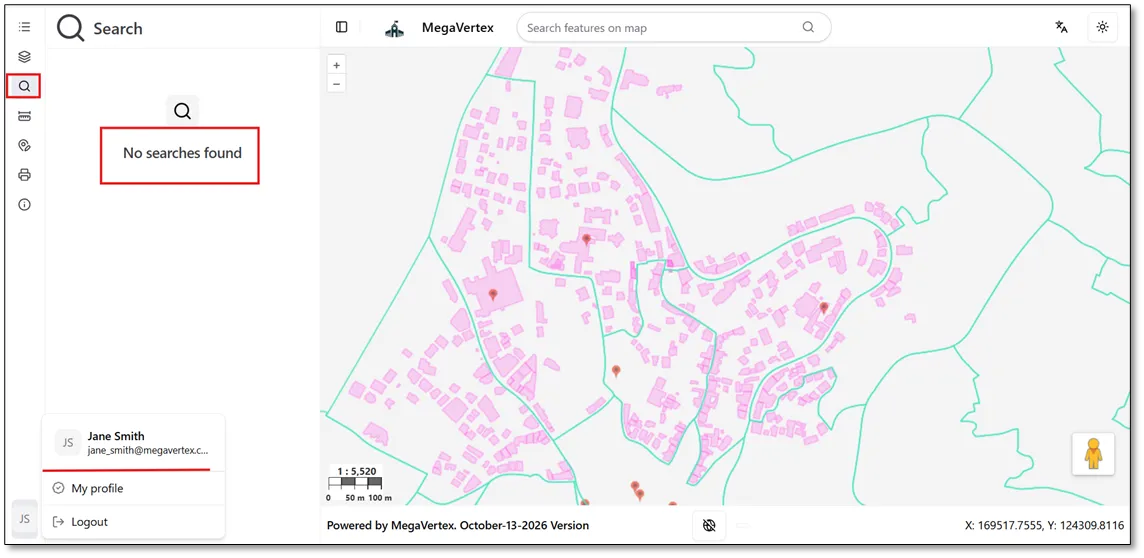
When Jane Smith clicks the Search tool button  in her account, a message stating “No searches found” appears, indicating that no search tools are currently available to her.
To grant a user permission to access a specific search tool, follow these steps:
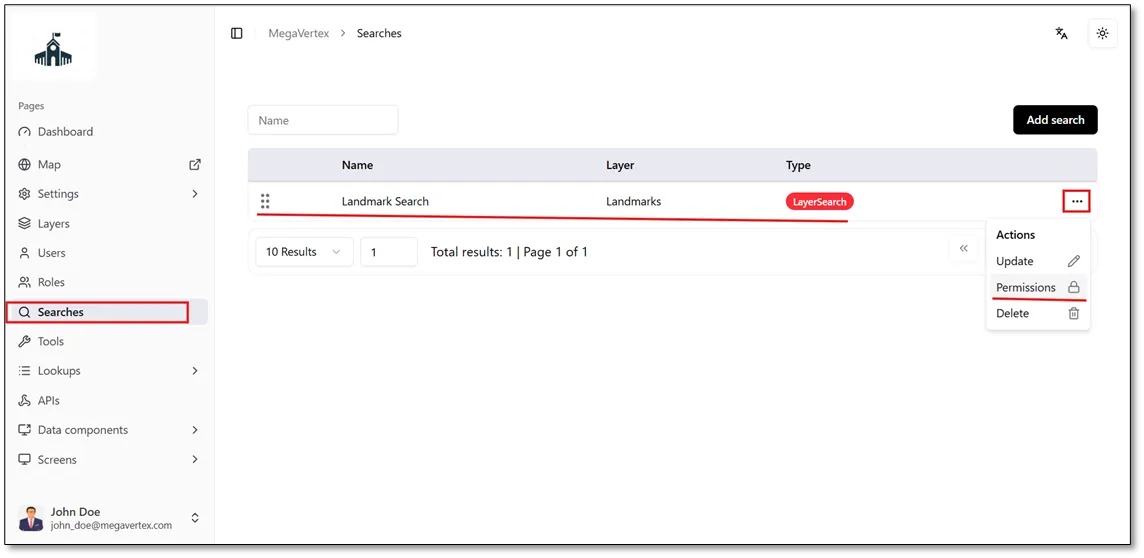
Navigate to the Searches page, click the Actions button  next to the search you want to configure, and select Permissions
 , as shown in the figure below.
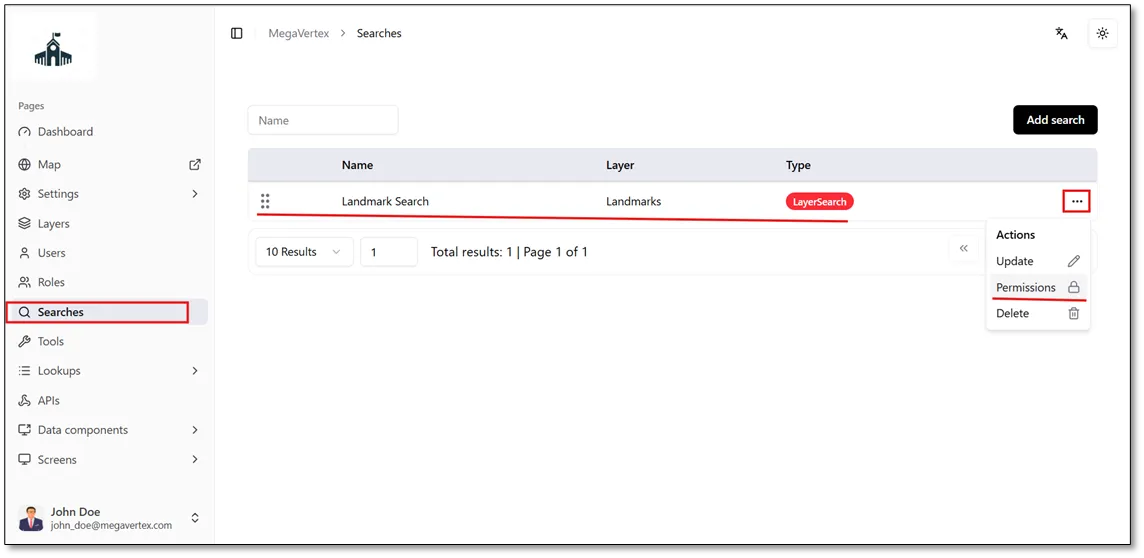
To make the Landmark Search tool available to Jane Smith, navigate to the Searches page, click the Actions button  next to Landmark Search, and select Permissions
 , as shown in the figure below.
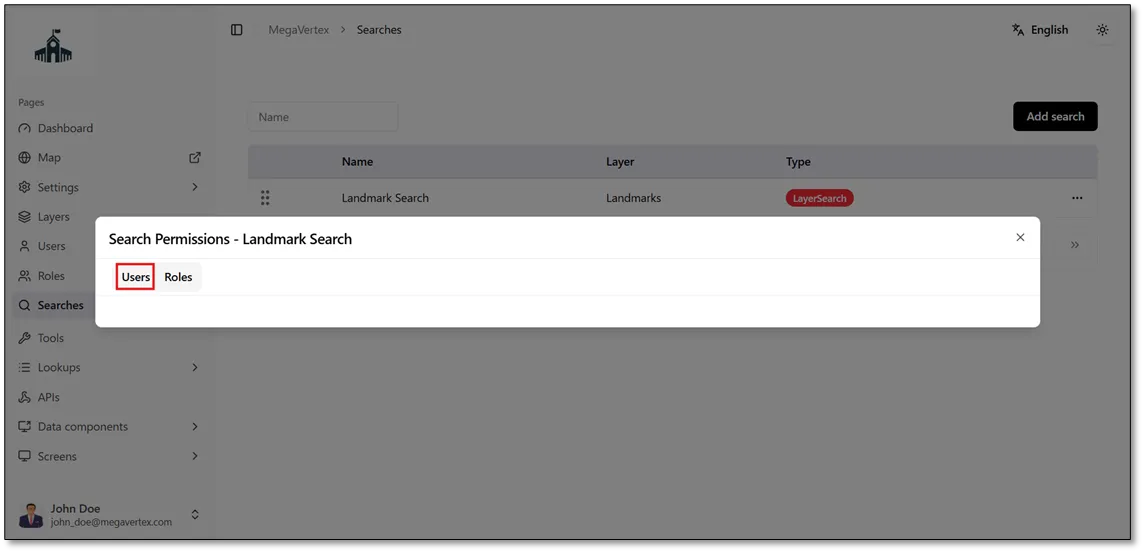
Select the Users tab, as shown in the figure below.
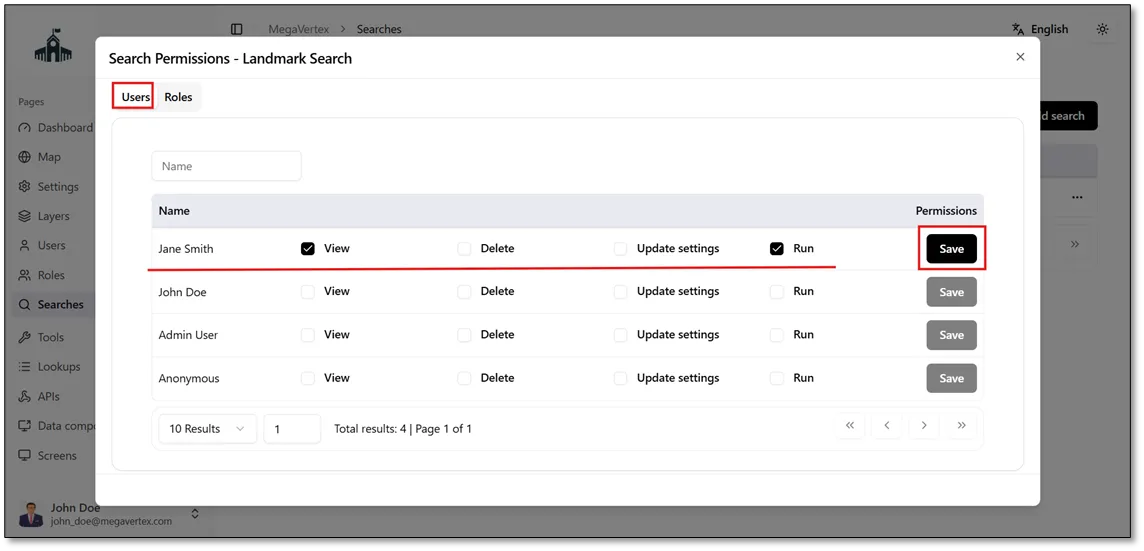
In the Users tab, select the checkbox  next to the user you want to grant permissions to (Jane Smith in this example). This will allow her to view and run the search. Then, click Save to apply the changes, as shown in the figure below.
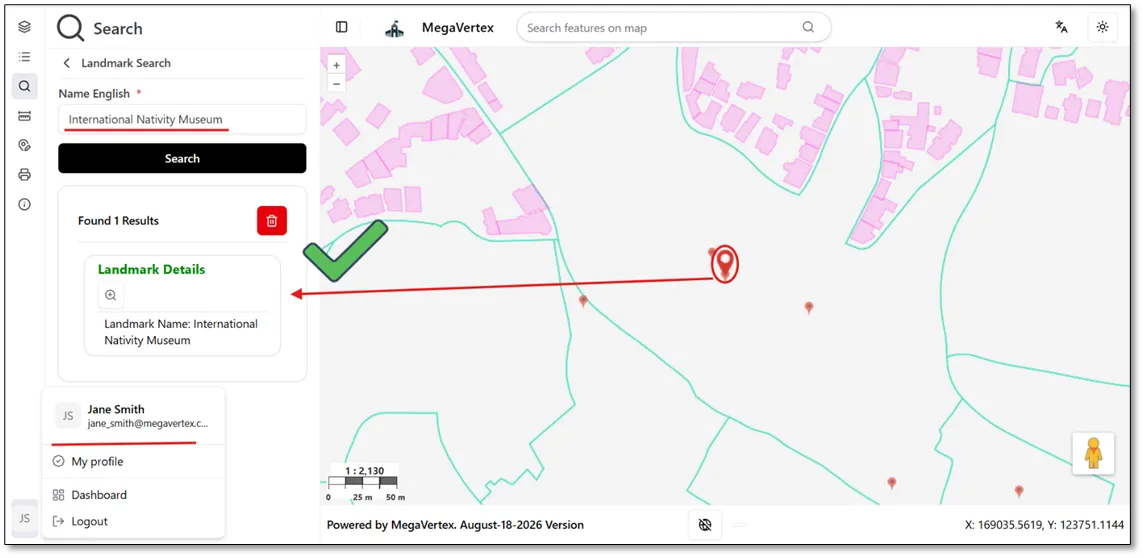
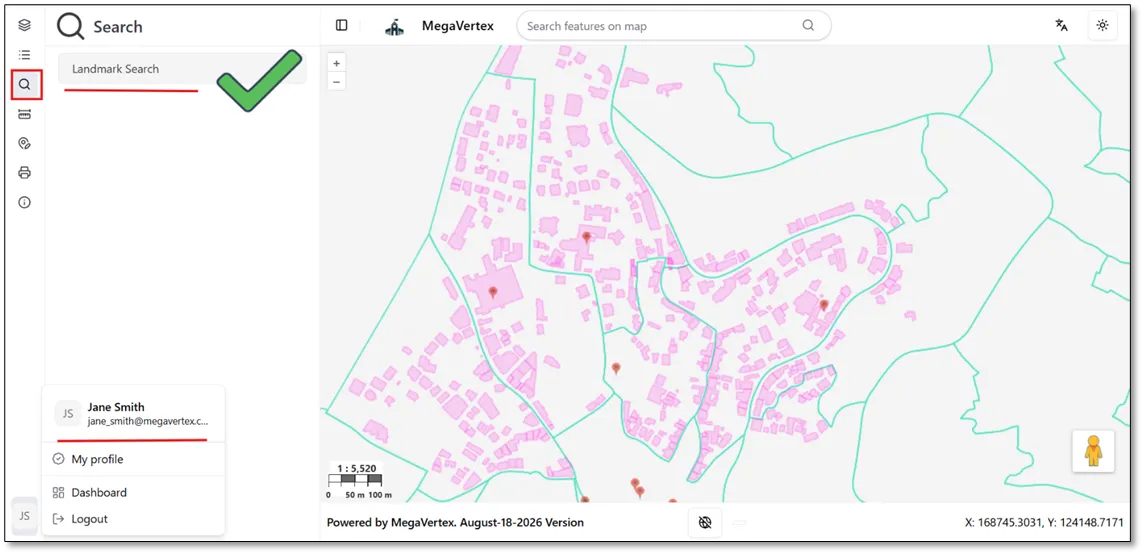
When Jane Smith is granted permission to view and Run Search, the search tool button  now displays the Landmark search tool, as shown in the figure below:
Using the Search tool in Jane Smith’s account, you can search for a landmark by its English name within the Landmarks layer, as shown in the figure below.