Role-Level Permission
In this section, layer permissions will be assigned at the role level, allowing all users assigned to that role to inherit its permissions.
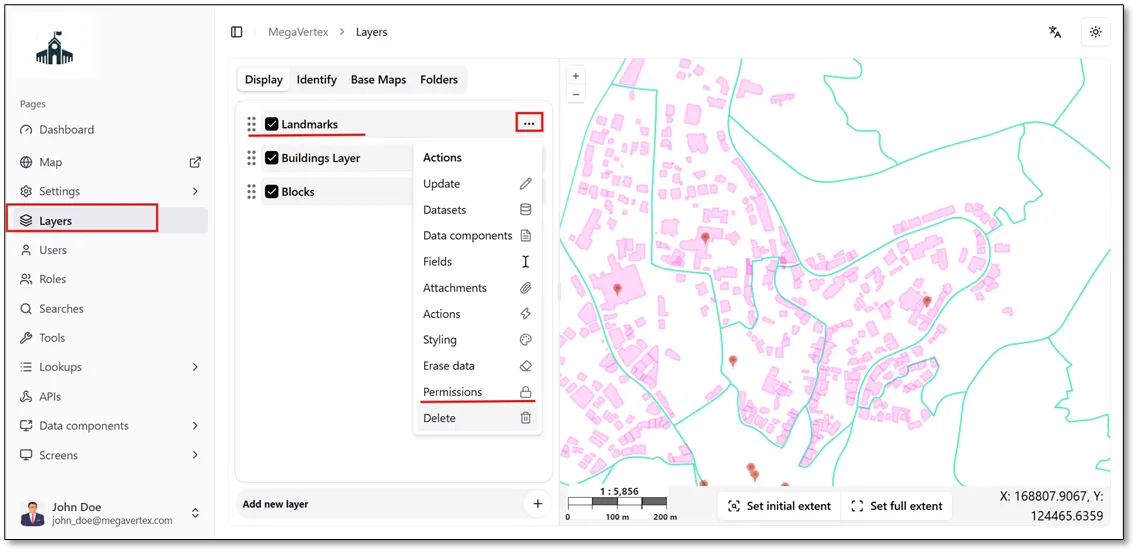
To assign permissions to a specific role, navigate to the Layers page and hover over the layer for which you want to configure permissions. Click the Actions button  , then select Permissions
 , as shown in the figure below.
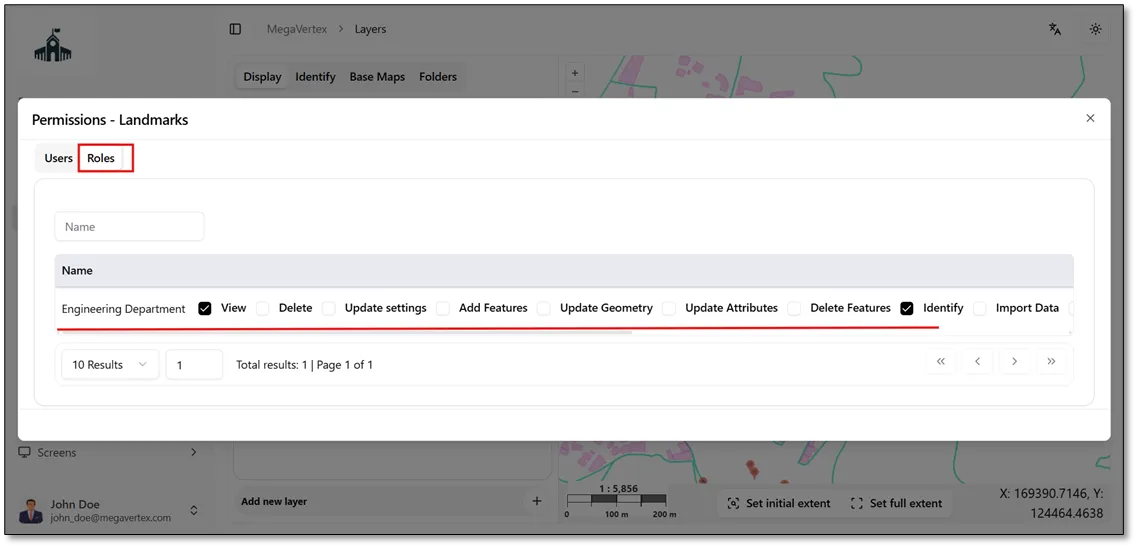
Navigate to the Roles tab and select the checkbox  next to the role you want to grant permissions to (Engineering Department in this example). This will grant the role permission to view and identify features in the layer, as shown in the figure below.
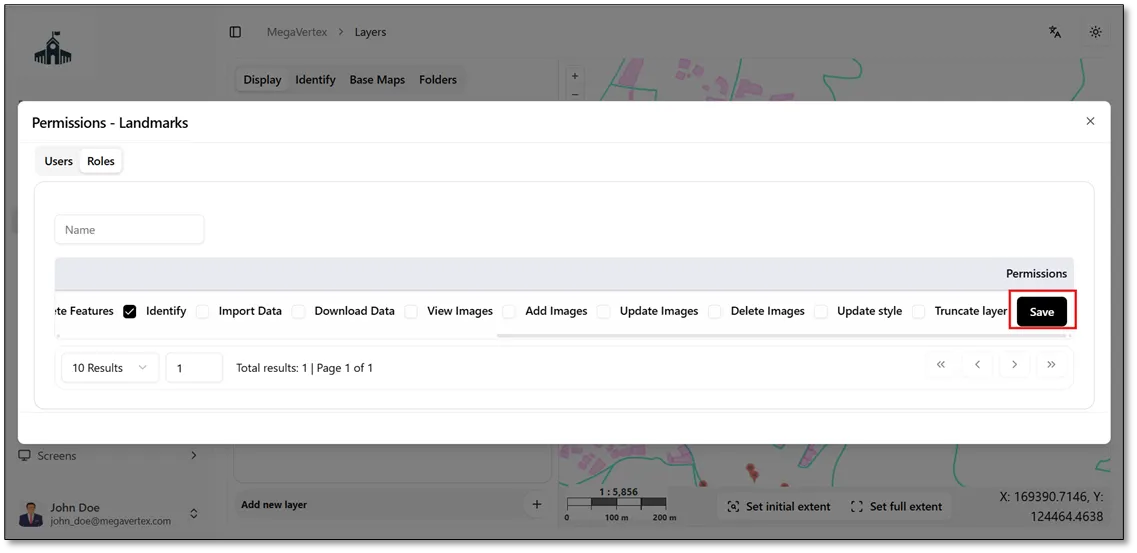
Finally, click Save to apply the changes and assign the selected layer permissions to the role.
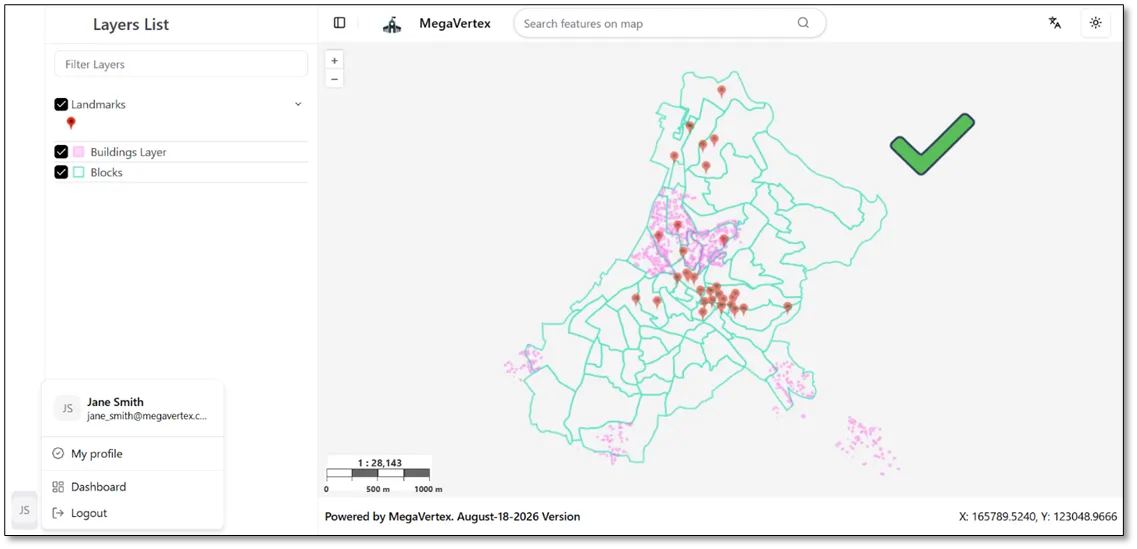
Since Jane Smith is a member of the Engineering Department role, the Map button  will be available when she logs in to the application. This allows her to access the map and view the layers for which her role has permissions, including the Buildings, Landmarks, and Blocks layers.